The meeting starts, your face is a silhouette against a window, and the laptop microphone captures more kitchen noise than conversation. A new webcam might help, but it will not automatically solve either problem. Better calls usually come from a few ordinary decisions made in the right order.
Begin with clear speech, useful light, and a stable connection. Only then decide which hardware would make the routine easier. This guide draws on manufacturer product information and practical setup considerations; it does not claim independent image-quality comparisons, microphone recordings, or application-certification testing.
Fix what the camera sees first
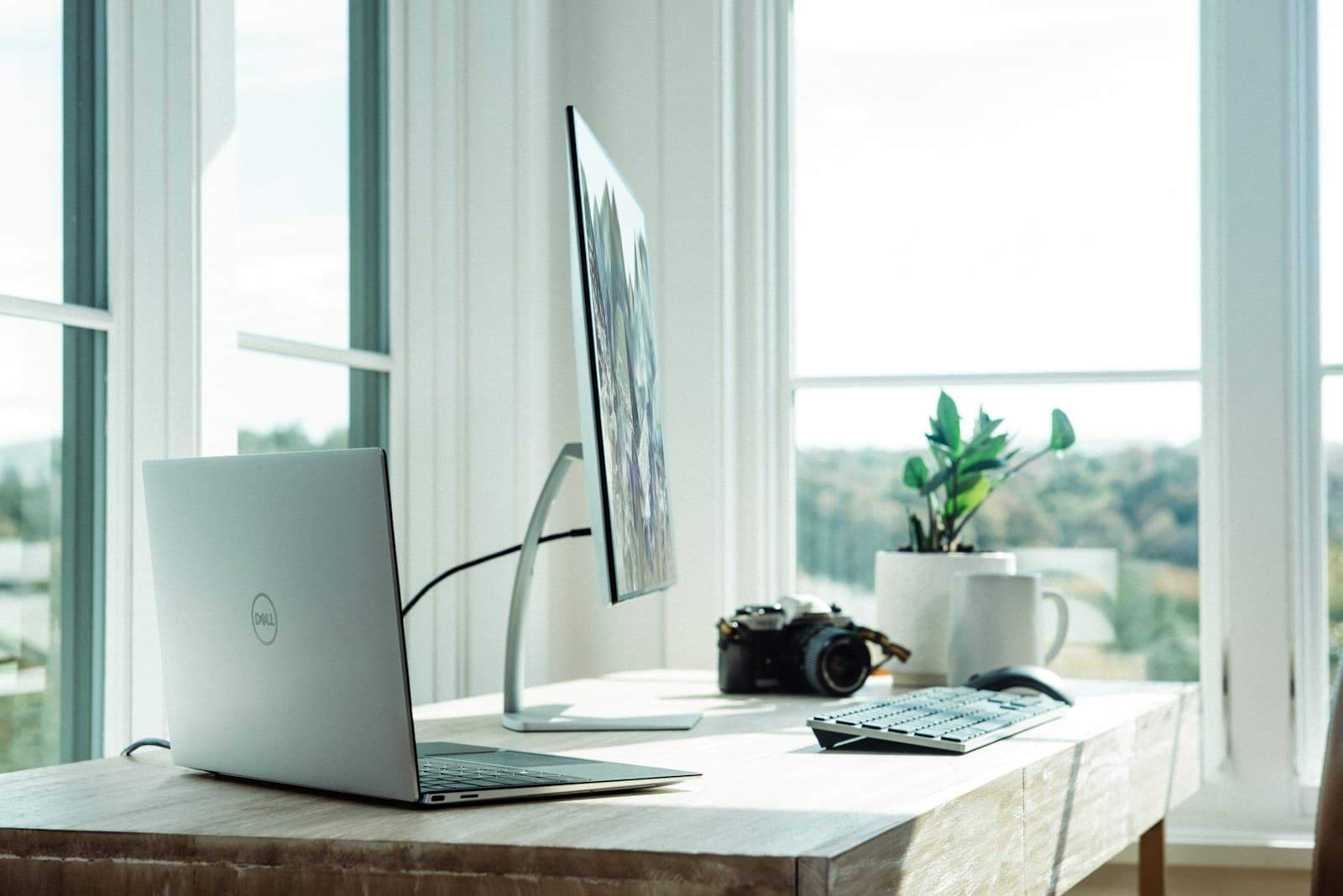
Open the preview in the application you actually use. If there is a bright window behind you, try turning the desk or shifting the camera position. Light from in front of you, softened where possible, often makes a more useful difference than changing camera resolution.
Place the camera close to a comfortable eye line without blocking the display. Check the frame for private paperwork, family photographs, reflective surfaces, or a doorway used by other people. A background effect can be helpful, but it is not a privacy guarantee. The physical scene still matters when effects fail or are switched off.
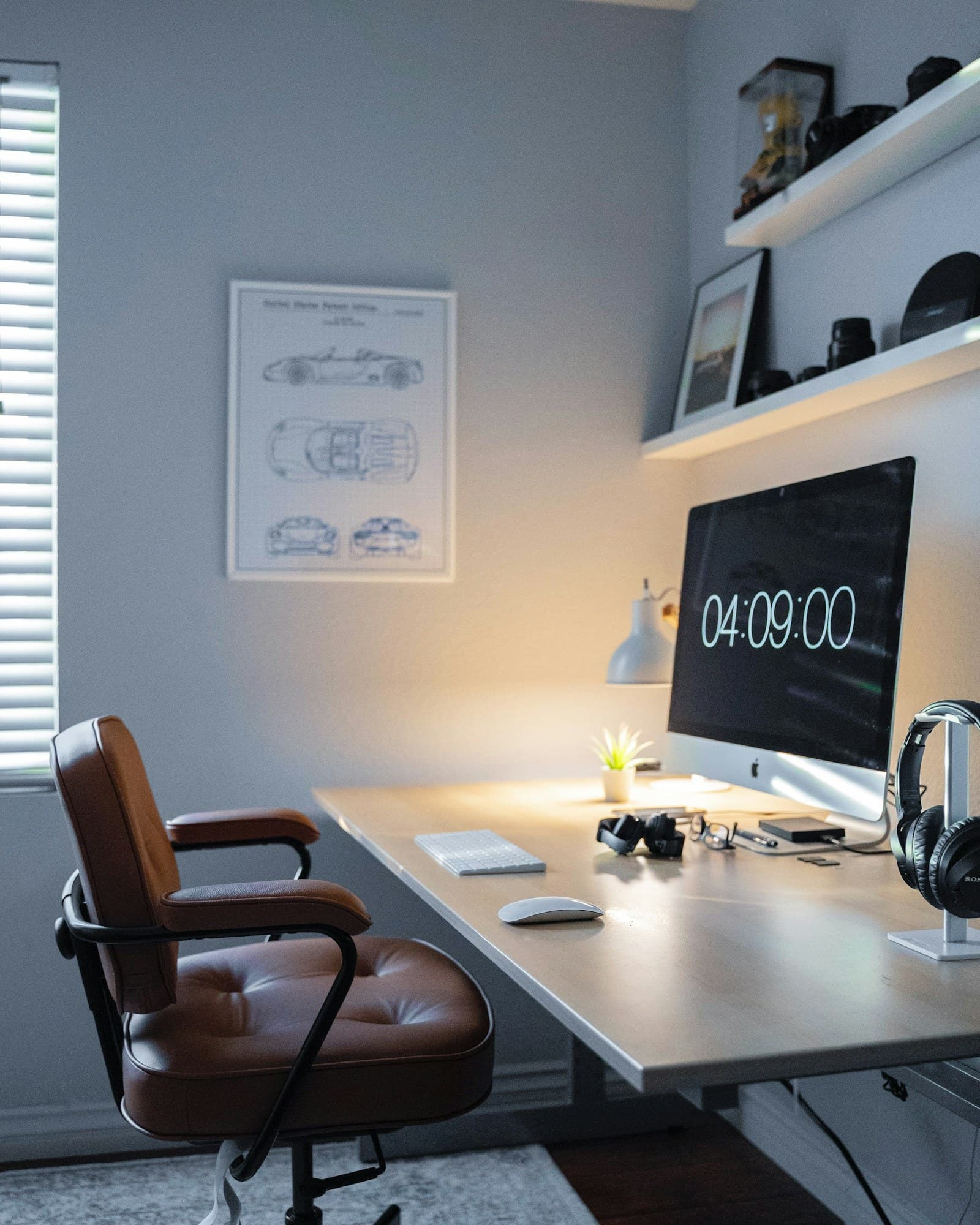
If the laptop is raised to improve the camera angle, use a comfortable keyboard and mouse arrangement rather than typing with your arms lifted. The desk setup should remain usable after the meeting ends.
Three equipment options with distinct jobs
| Product or family | A practical reason to investigate it | Check before buying |
|---|---|---|
| Logitech Brio 500 | A dedicated webcam for a regular meeting desk | Mounting, connections, and supported software functions |
| Logitech C920s | A conventional external-webcam alternative | Exact model and application requirements |
| Jabra office headsets | Wired options for speech-focused calls | Connection type, platform variant, and physical comfort |
Logitech Brio 500: improve the daily camera routine
The Logitech Brio 500 is worth investigating if the built-in camera is awkwardly positioned or you want a camera that stays with the external monitor. Check the current product information for supported controls and which functions depend on additional software.
It can suit someone who spends much of the week at the same desk. It is less compelling when the existing camera already produces an acceptable picture and poor lighting is the real issue. Consider whether its mount fits your display and whether it competes for space with a monitor light.
Logitech C920s: compare the complete connection
The Logitech C920s is another external camera to investigate for everyday calls. Confirm the exact model, included privacy features, physical connection, and operating-system compatibility in the listing you plan to buy from.
It can suit a straightforward meeting setup when its documented capabilities meet your needs. It is less attractive if the available port requires an awkward adapter or you need features it does not provide. An external camera’s advertised output is not a promise that every meeting platform will transmit that same quality; application settings and the network also matter.
Jabra office headsets: solve the conversation first
Browse Jabra’s office-headset range for wired options when speech and repeatable connection matter more than moving freely around a room. The directory includes different product families and connection types, so check the exact model rather than assuming every office headset is wired. Compare available connectors and platform variants, including any certification claimed for the exact version.
A headset can keep meeting audio private and place a microphone closer to your voice. That does not guarantee it will remove every household sound. It suits someone who prefers a predictable wired setup and does not need to walk away from the desk during calls. It is less suitable if you dislike wearing a headset for extended periods.
Explore wired office-headset options at Jabra.
Test the whole meeting path
Select the intended microphone and speaker inside the meeting application. The operating system and application may choose different devices after an accessory is connected. Use the app’s test facility or make a short local recording that you can delete after checking intelligibility and background sound.
If audio echoes, check whether more than one nearby device has joined the meeting with speakers enabled. If video freezes, investigate the network separately from the camera. A wired connection can be useful at a fixed desk, while better Wi-Fi placement may help elsewhere.
Review app permissions and close documents you do not want to share. Before presenting, verify whether you are sharing one window or an entire screen. Use a physical camera cover where provided and remember that covering a lens does not mute the microphone.
What not to overbuy
Avoid a studio microphone, elaborate lighting rig, or premium camera until a specific limitation justifies it. More equipment introduces more controls, cables, and opportunities to select the wrong input. For many ordinary calls, improving the room and using a dependable headset is the more useful first step.
FAQ
Do I need a separate microphone with a webcam?
Not necessarily. Test the existing audio first. A headset may be the simpler improvement if the room is shared or the built-in microphone sounds distant.
Will a better webcam fix a slow connection?
No. Camera quality and network reliability are different problems. Check the connection and application settings before replacing hardware.
Is a virtual background enough for privacy?
No. Keep sensitive objects out of the frame, check the preview, and review what is visible when effects are unavailable or disabled.