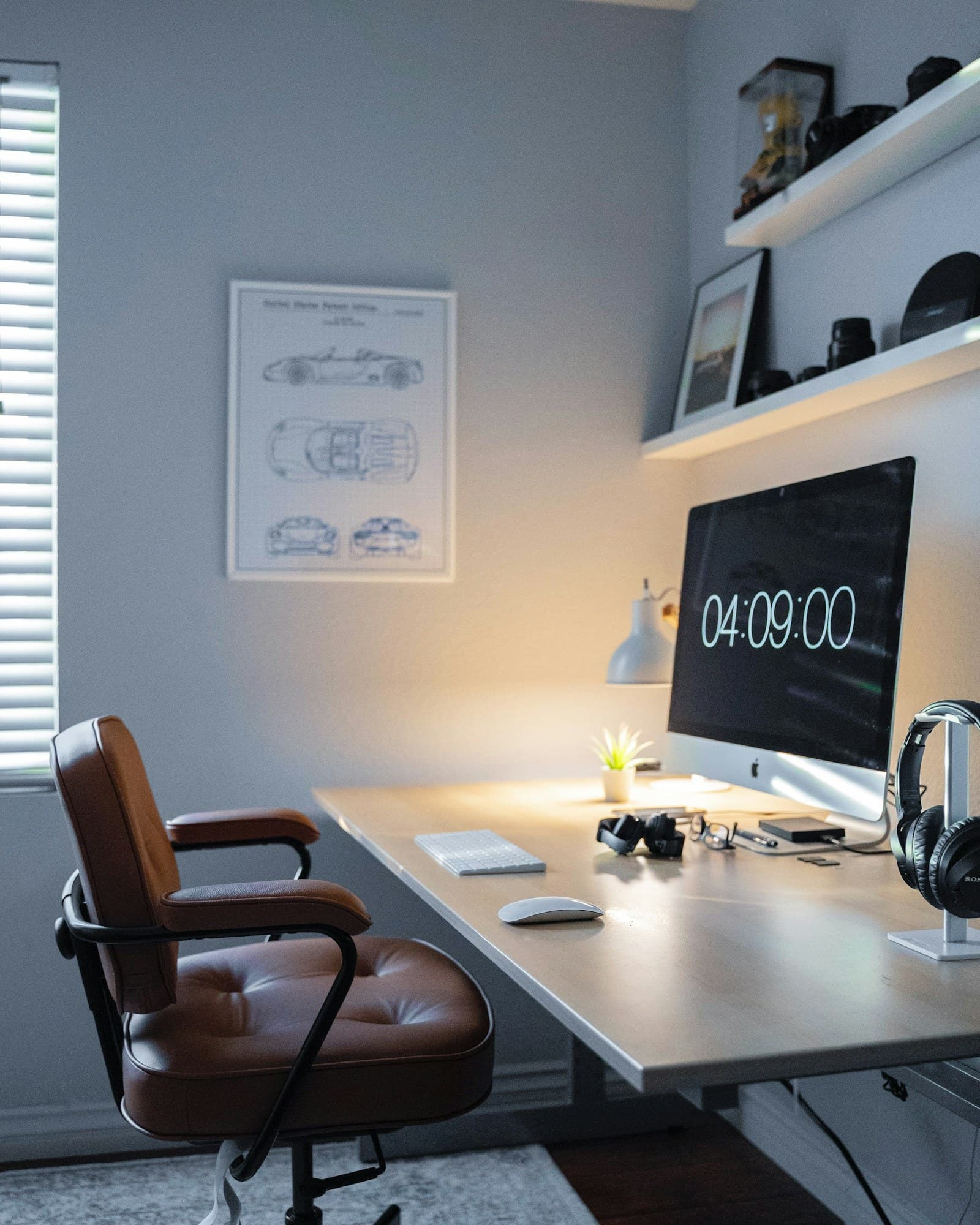
A spreadsheet is open on one side, a document on the other, and your laptop has quietly become a collection of overlapping windows. An external monitor can make that day easier. The wrong one can also leave text too small, cables too complicated, or the screen uncomfortably close to your face.
Start with readable working space rather than a dramatic size upgrade. The right display should fit the desk, the computer, and the kind of information you keep on screen. This guide uses manufacturer information to frame the decisions; it does not offer measured color, brightness, or response-time comparisons.
Look at text before counting pixels
Resolution affects how much detail a display can show, but operating-system scaling determines how comfortable that detail is to use. A high-resolution panel may produce crisp text while requiring scaling that leaves less usable space than you expected. Check examples for your operating system and, where possible, view a similar display in person.
Measure the desk depth and the space available around the stand. Consider the largest document you normally read, whether you need two windows side by side, and whether the monitor will sit in front of a bright window. An adjustable stand can be more valuable than a feature you will rarely enable.
Three sensible product directions
| Product or family | Best reason to investigate it | Main tradeoff |
|---|---|---|
| Dell UltraSharp | A broad work-monitor range with several connection options | Closely related models can have different ports |
| BenQ PD2705U | A creative-work display to evaluate for a mixed office workflow | Creative features may be unnecessary for basic documents |
| Apple Studio Display | A Mac-centered desk with an integrated approach | Price and computer compatibility need careful consideration |
Dell UltraSharp: read the full model name
The Dell monitor store provides a starting point for comparing UltraSharp work displays. The UltraSharp U2723QE is one example to research, rather than a promise that every UltraSharp has the same connections or panel behavior. Check the exact model, region, and current listing before ordering.
This family makes sense when you want to compare several work-oriented sizes and connection arrangements. It is less useful to shop by brand name alone. Two displays that look almost identical can differ in laptop charging, Ethernet, USB capabilities, or included cables.
BenQ PD2705U: buy creative features for actual tasks
The BenQ PD2705U is worth investigating if your day moves between ordinary office work and creative applications. Review its stated color modes, connectivity, and compatible workflows against the software you use. Manufacturer color claims should not be confused with an independent assessment of a particular unit.
It can suit someone editing images, preparing layouts, and handling documents at the same desk. It may be unnecessary for a workflow consisting entirely of email and browser forms. Specialized features are only good value when they replace a real limitation in your current setup.
Apple Studio Display: consider the whole Mac setup
Apple Studio Display is an option for a Mac-centered workspace where the combination of display and integrated features appeals. Check the current compatibility list, connection requirements, and available stand or mounting configurations before purchase. Do not assume every feature works the same way with every computer.
It suits buyers who value that particular integrated arrangement and expect to keep using a compatible Mac. It is harder to justify if the desk regularly alternates between unrelated machines or the purchase would consume the budget needed for more pressing work equipment.
A single cable requires several checks
A USB-C socket alone does not guarantee video input, sufficient laptop charging, or the USB data behavior you need. Compare the monitor specifications with your computer’s port capabilities and the supplied cable. If you use a separate dock, check that the entire connection path supports the intended display arrangement.
Write down every accessory that needs a home: webcam, keyboard receiver, storage drive, headset, and network cable. A monitor with useful connectivity can simplify the desk, but it is not automatically a replacement for every dock. Confirm what happens to connected accessories when you switch computers or turn off the screen.
Do not pay for a workflow you do not have
High refresh rates, extensive color modes, and very wide screens can be worthwhile for specific tasks. They do not automatically improve a day spent editing documents. Spend first on readable text, appropriate adjustment, and dependable connections.
If budget is tight, keep the existing keyboard and speakers and choose a monitor that fits the actual desk. Check the seller’s return policy for comfort and pixel issues, and read the warranty terms directly. A published specification cannot tell you whether a screen feels right in your room.
FAQ
Is a larger display always better?
No. Desk depth, scaling, and viewing comfort matter. A screen that forces constant head movement can be less useful than a smaller one arranged well.
Can any laptop run two external monitors?
No. Limits depend on the exact computer, operating system, connection method, and display settings. Verify the computer manufacturer’s specifications before buying a pair.
Should I calibrate a monitor for email?
Basic brightness and scaling adjustments matter more for ordinary office work. Color-critical tasks may require a documented calibration workflow and appropriate equipment.