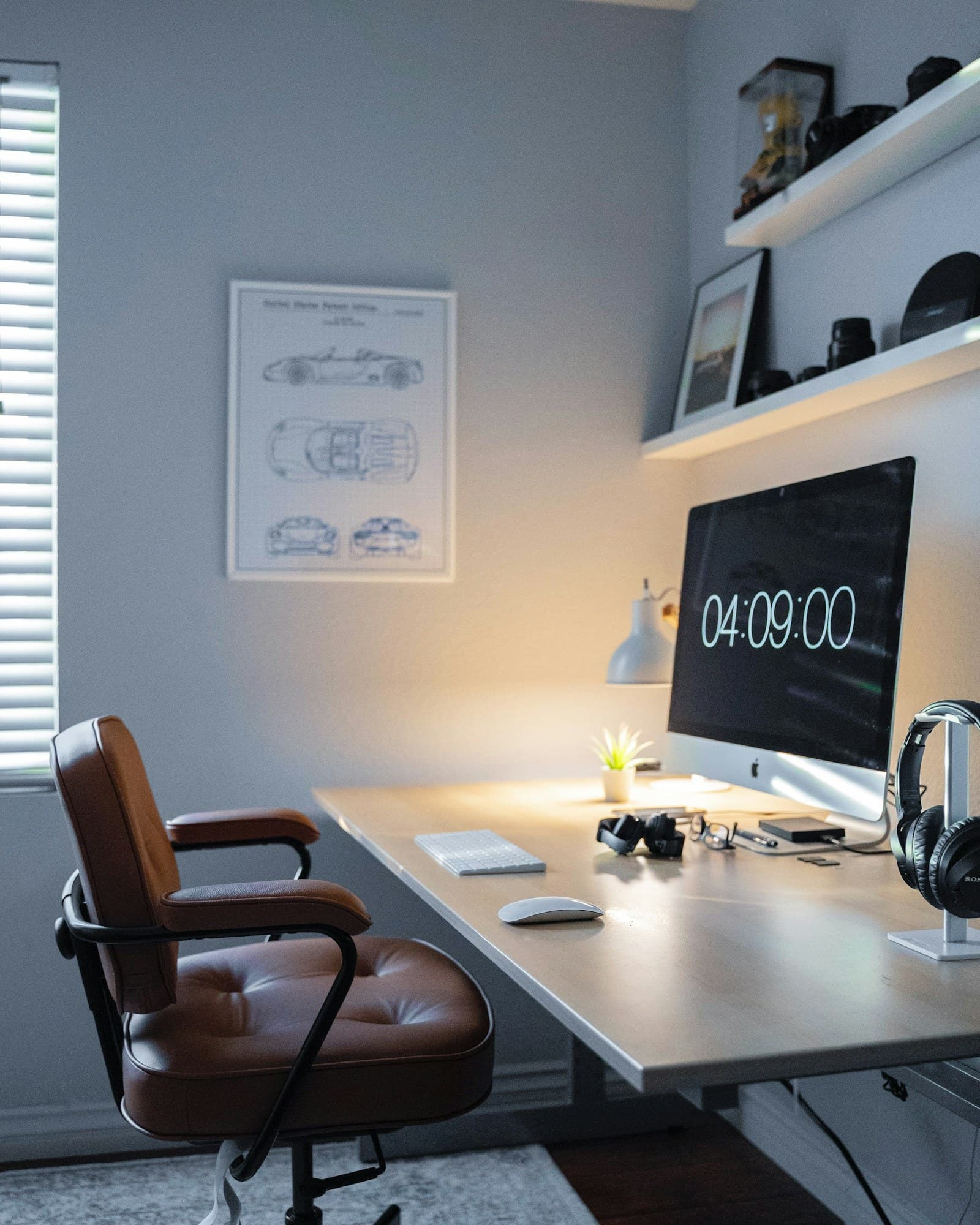
At the end of a busy afternoon, the desk tells a story: a laptop pushed sideways to make room for notes, charging cables draped across a coffee cup, and a bright window reflected in the screen. None of those problems requires an elaborate office makeover. They require a setup that gives the important tasks a comfortable place.
A calmer desk is not necessarily an empty desk. A paper notebook, a familiar mug, and a family photograph can all belong there. The useful distinction is between objects you reach for deliberately and objects that stay because moving them is inconvenient. Start with that distinction before buying hardware.
Spend one normal morning observing the desk
Notice which device you look at most, where your hands rest, and how often you move something to make space. If the laptop is the main screen, raising it may help positioning, but you will then need separate input devices. If handwritten notes dominate the day, preserve a clear writing area rather than filling the surface with a large desk mat.
Place frequently used objects within an easy reach and move occasional equipment elsewhere. Check chair and desk adjustments before assuming a new mouse will solve discomfort. Persistent pain deserves appropriate professional advice; a product described as ergonomic is not a personal medical recommendation.
Three purchases that can solve specific problems
| Problem at the desk | Product to investigate | What to check first |
|---|---|---|
| The current mouse feels awkward | Logitech Lift | Hand fit, preferred hand, and return policy |
| The working surface is poorly lit | BenQ ScreenBar family | Monitor fit, reflections, and existing room light |
| The laptop screen restricts everyday work | Dell UltraSharp monitor family | Available space, resolution, ports, and scaling |
Logitech Lift: fit matters more than the label
The Logitech Lift is worth investigating if you want a vertical-style mouse and its intended hand-size range suits you. Consider the shape and button placement rather than assuming an unfamiliar angle must be better. Read the exact regional listing for available versions and connectivity.
It can suit everyday office navigation when a conventional mouse feels unnatural. It may be less suitable for someone who prefers a larger grip, relies on specialized controls, or dislikes adapting to a different shape. Buy from somewhere that lets you assess fit within a clear return policy.
BenQ ScreenBar: solve light before adding decoration
The BenQ ScreenBar range offers monitor-mounted task-lighting options. A light above the display can preserve desk space, but compatibility depends on your monitor’s shape and whatever else sits along its top edge. A webcam, deep housing, or unusual screen curvature can complicate the arrangement.
This category makes sense when the desk needs focused light and there is little room for a lamp base. Skip it if an existing adjustable lamp already lights the task comfortably. A monitor light is not a substitute for suitable room lighting, and its position still needs checking for glare.
Dell UltraSharp: choose useful workspace
The Dell monitor store is a place to compare UltraSharp and other work-oriented displays. For everyday documents and calls, investigate readable text, a useful stand, and the connections your laptop actually supports. Do not buy a display purely because its diagonal size sounds impressive.
An external monitor suits someone who works for long stretches at a fixed desk. It is less compelling when the room must be cleared every evening or the desk is too shallow for a comfortable viewing distance. Our monitor buying guide explains the decisions in more detail.
Make cables easier to live with
Choose one charging location and keep the connector accessible. Route cables so that unplugging a laptop does not drag accessories toward the edge. Leave enough slack for adjustable furniture and avoid crushing power leads under chair wheels. Follow the equipment instructions rather than bundling everything tightly for appearance.
If several accessories must connect each morning, a compatible dock can reduce friction. If you only attach a mouse receiver, an elaborate dock may add little value. The goal is fewer interruptions, not the largest number of available ports.
What can wait
Keep the keyboard you like. Postpone decorative lighting, a second display, and expensive matching accessories until a real task calls for them. A second monitor also needs space, cables, and attention; it is not automatically a productivity upgrade.
These suggestions are based on manufacturer product information and practical workspace planning, not comparative hands-on testing. Make one change at a time so you can tell whether the desk has become more comfortable and easier to use.
FAQ
Should every desk have a monitor arm?
No. A good stand may provide all the adjustment you need. Check mounting compatibility, desk construction, and clearance before buying an arm.
Is a matching keyboard and mouse essential?
No. Fit and everyday behavior matter more than matching finishes. You can combine devices if their connections and software work with your computer.
Where should a limited budget go first?
Address the problem you encounter most often: unreadable text, poor light, an awkward reach, or tangled connections. Solve that before expanding the setup.